This guide walks you through downloading the HAIDI App, connecting your GT12V100-LTSB-B20 battery, and viewing live battery performance information.
Step 1
Download The App
Scan the QR code or search for the Haidi Energy app in your device’s app store.
Download and install the application on your smartphone or tablet.
Enable Bluetooth on your mobile device before connecting.
Step 2
Connect Your Battery
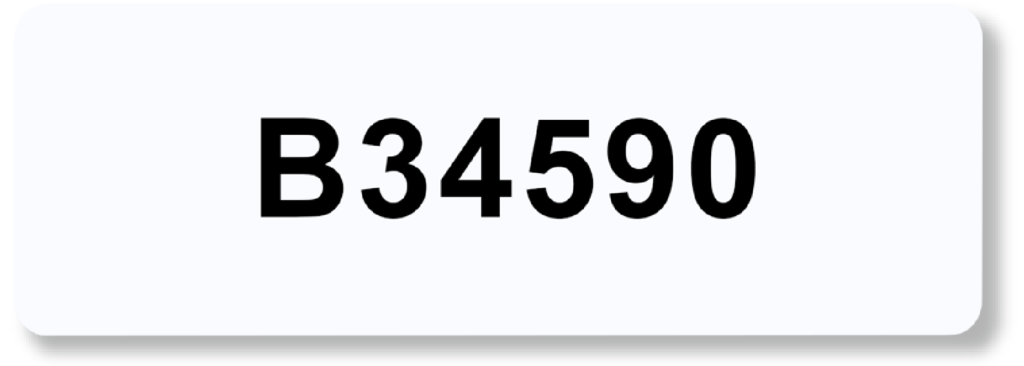
Locate the serial number on the battery you would like to connect.
Turn on the battery.
Open the Haidi app.
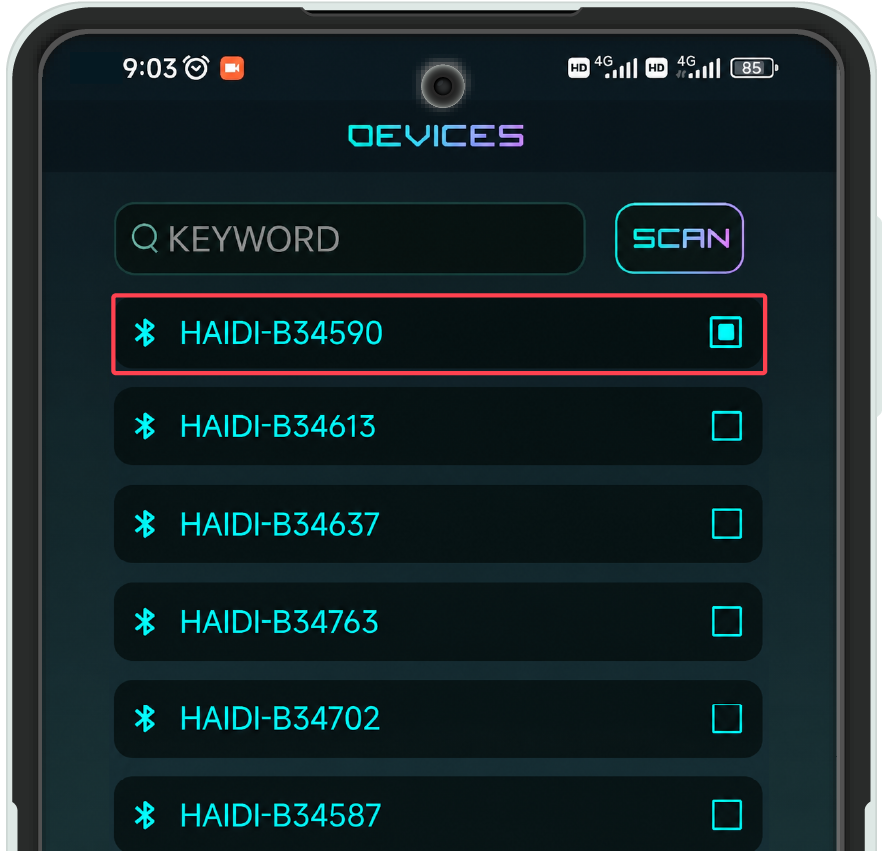
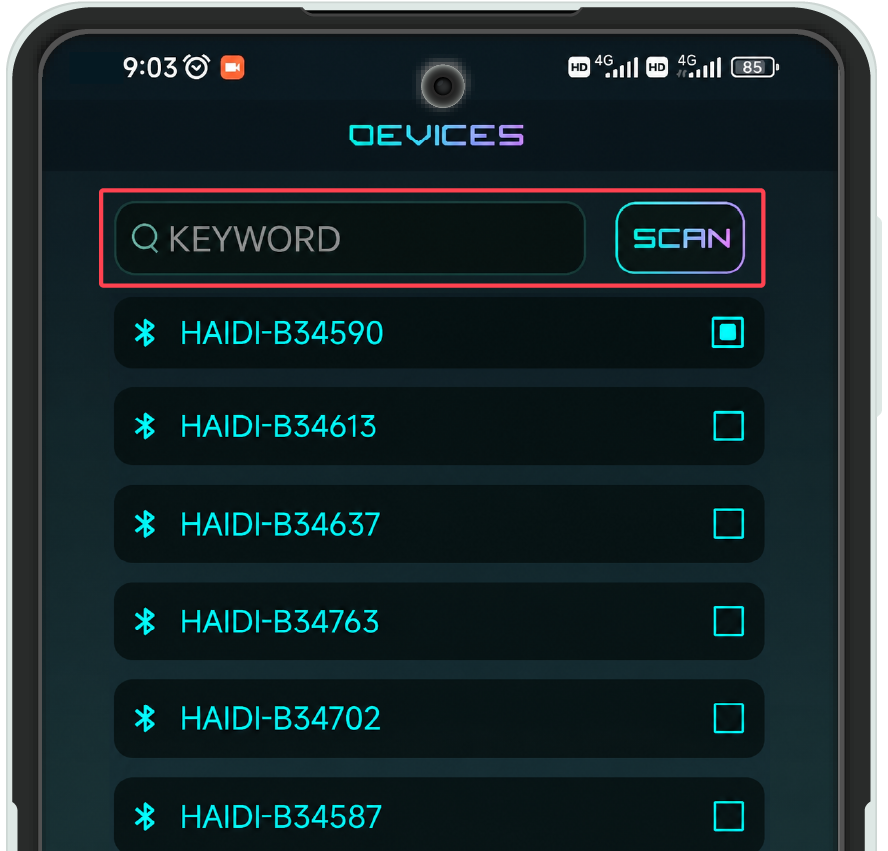
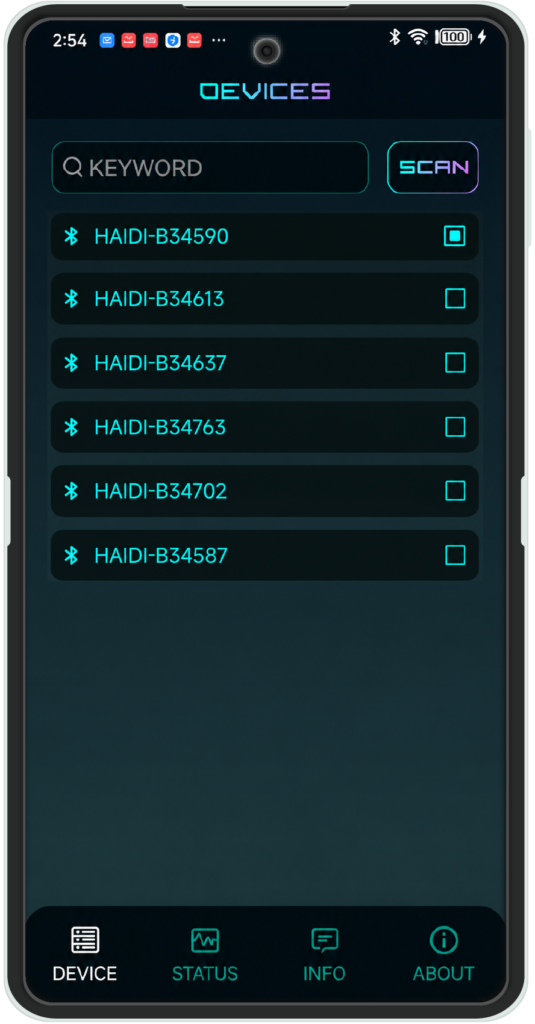
The app will automatically begin searching for nearby batteries.
Select the device with the matching serial number and tap Connect.
Alternatively, scan the QR code displayed on the battery label to locate your battery.
Find the matching serial number
Alternatively, scan the QR code
Step 3
Understanding The App Screens
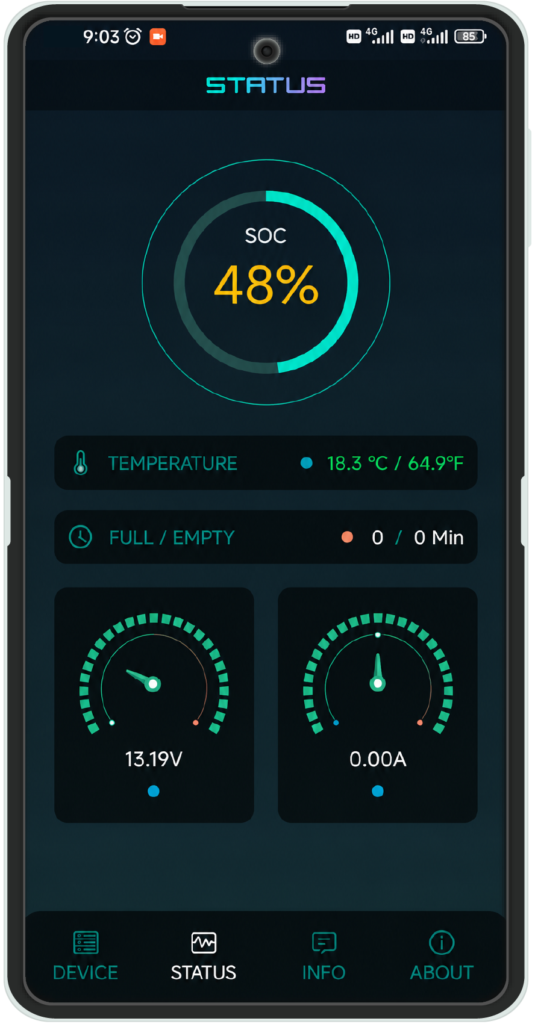
Status Screen
The Status screen provides real-time battery information, including:
State of Charge (SOC)
Battery Voltage
Cell Voltage
Charge / Discharge Current
Temperature
Estimated Full / Empty Time
Device Screen
The Device screen allows you to manage your Bluetooth connection.
Disconnect the battery from the app
View connected device information
Information Screen
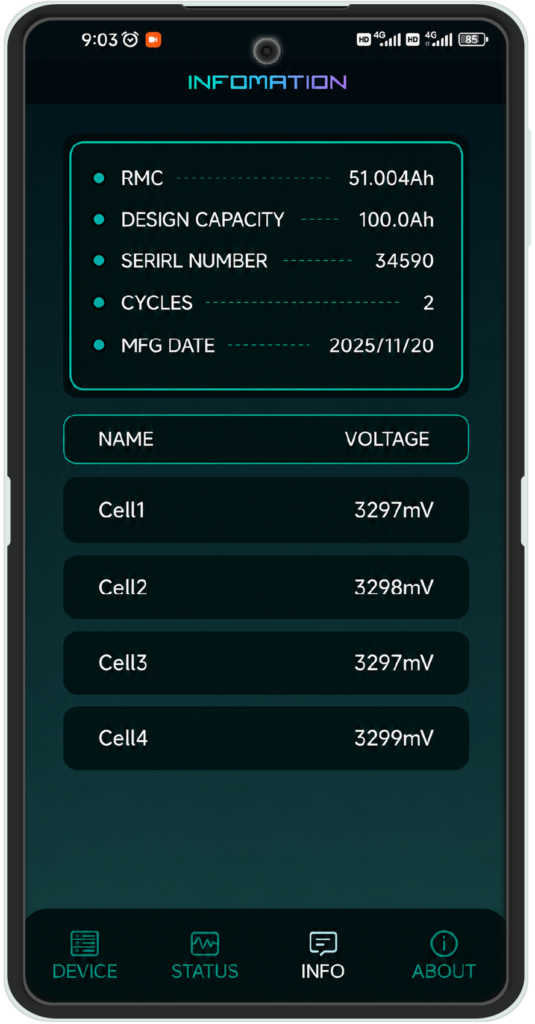
The Info screen displays detailed battery data, including:
Remaining Capacity (RMC)
Design Capacity
Serial Number
Cycle Count
Manufacturing Date
Individual Cell Voltages
About Screen
The About screen contains HAIDI application and manufacturer information.
Tips for Best Performance
Keep Bluetooth enabled while monitoring the battery.
Stay within Bluetooth range for a stable connection.
Ensure the battery is powered on before opening the app.
Only connect to batteries with matching serial numbers.
Troubleshooting
Battery Not Appearing in the App?
Confirm Bluetooth is enabled on your device.
Verify the battery is powered on.
Move closer to the battery.
Restart the app and rescan for devices.
Unable to Connect?
Make sure another device is not already connected to the battery.
Restart Bluetooth on your mobile device and try again.
Become a Partner
If you’re a dealer or distributor in the energy storage industry we’d love to talk. Your customers will love our American-made lithium-ion batteries that deliver superior performance, longevity, and reliability.